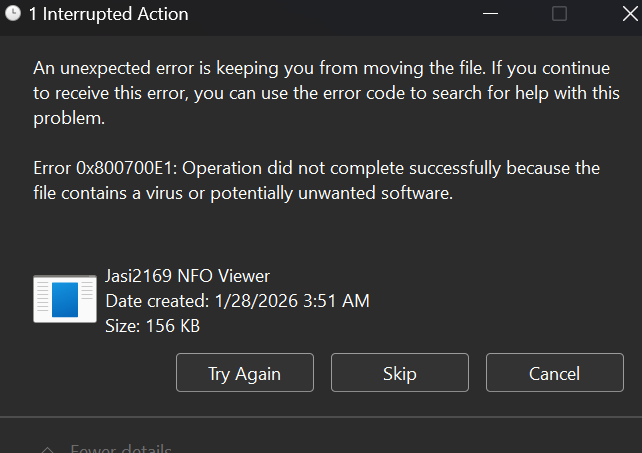
A “Missing File” or “File Not Found” error (often accompanied by code 0x80070005) typically occurs when the installer expects a specific component that isn’t where it should be.
Why Files Go Missing
- Antivirus False Positives: Security software, like Windows Defender, may mistake a legitimate utility file for a threat and quarantine it before the installer can use it.
- Corrupted Downloads: If your internet connection flickered during the download, the package might be incomplete.
- Extraction Issues: Trying to run an installer directly from a
.zipor.rarfolder without extracting it first often leads to path errors. - Missing Cache: If you are trying to update or repair an existing program, the original “Installer Cache” might have been deleted, leaving the system unable to find the required
.msifiles.
How to Fix It
- Check Protection History: Open Windows Security > Virus & threat protection > Protection history. If your file was recently blocked, select Actions > Allow on device.
- Extract All Files: Always right-click your downloaded folder and select Extract All to a physical location (like your Desktop) before running the setup.
- Redownload from a Trusted Source: Delete the current installer and download a fresh copy directly from the official vendor website to ensure no data was lost.
- Verify File Integrity: Advanced users can check the file’s Hash (MD5/SHA-256) against the vendor’s provided checksum to ensure the file is identical to the original.
-
Pingback: How to Fix Unable to Install Error During Software Installation - Belad Creative Hub Ltd